Work on a computer? Raycast can easily double your productivity.
It’s a Swiss Army knife that replaced a dozen utility tools I used to juggle.
How I use Raycast every day
- Open apps instantly.
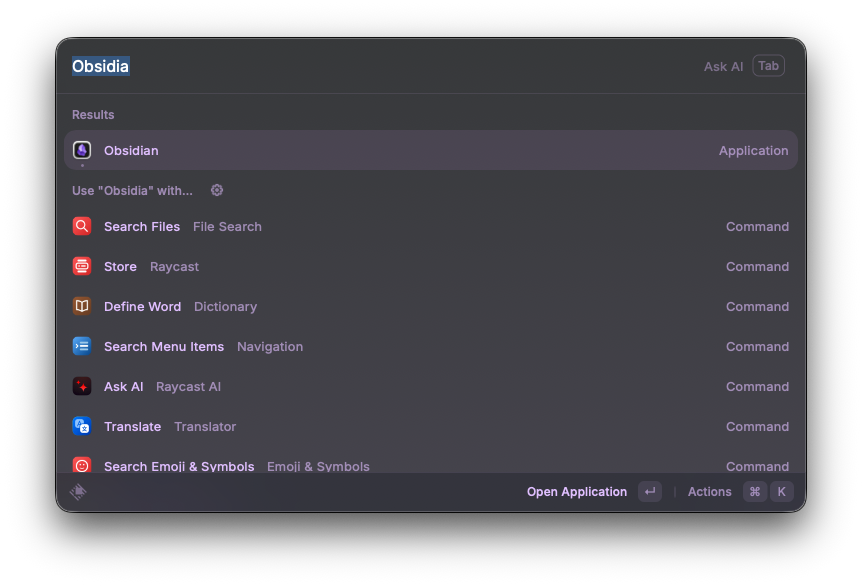
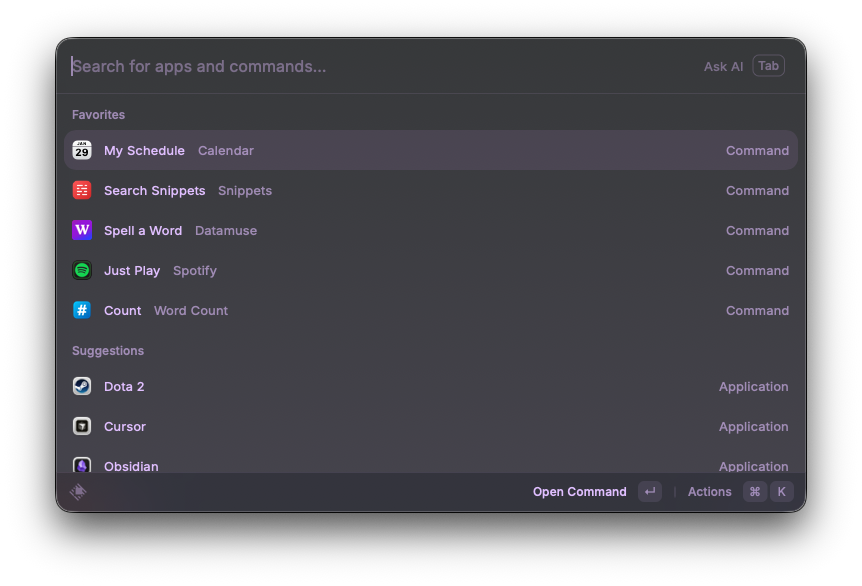
- Pin favorite commands to the top: Actions → Add to Favourites (or ⌘⇧F).
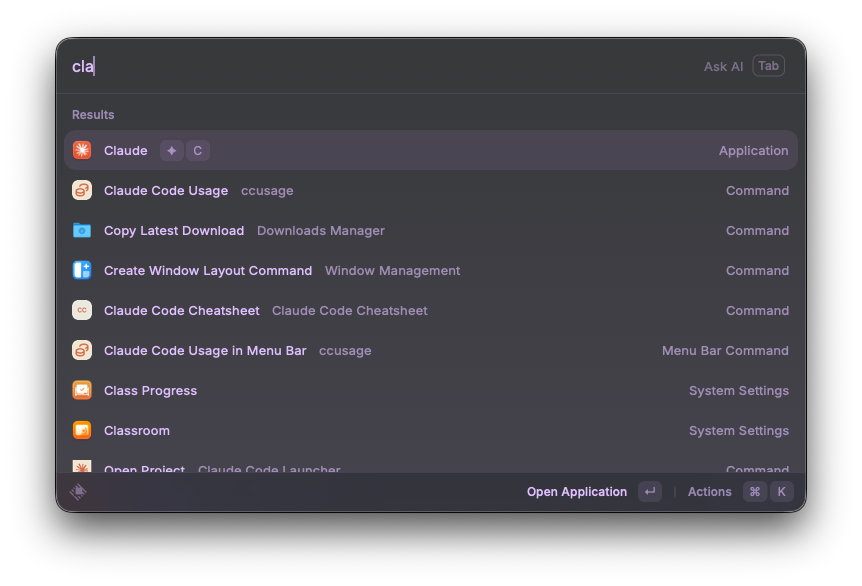
- Select any search result quickly via shortcuts by holding ⌘.
.gif)
- Assign shortcuts to any app or command for instant access.
- Create reusable snippets—prompts, contact details, addresses—anything you copy-paste too often.
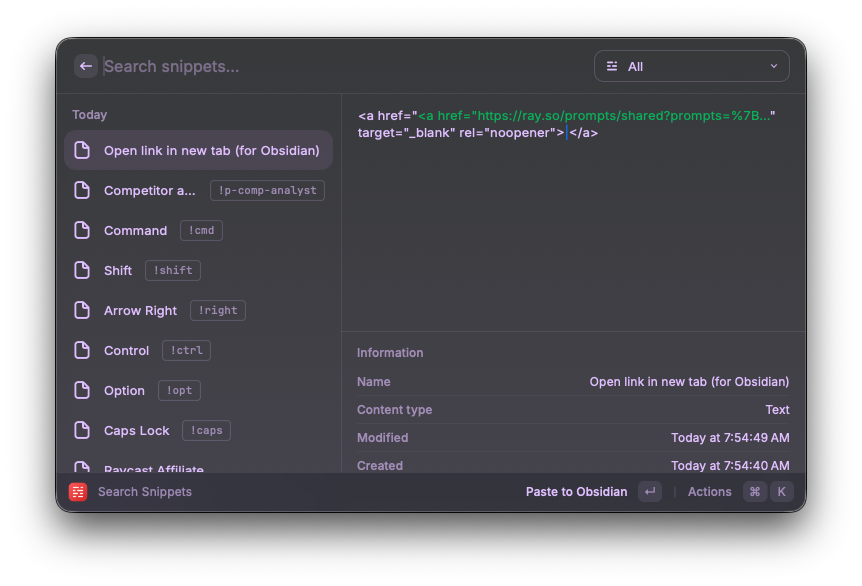 You can even assign an optional keyword, like
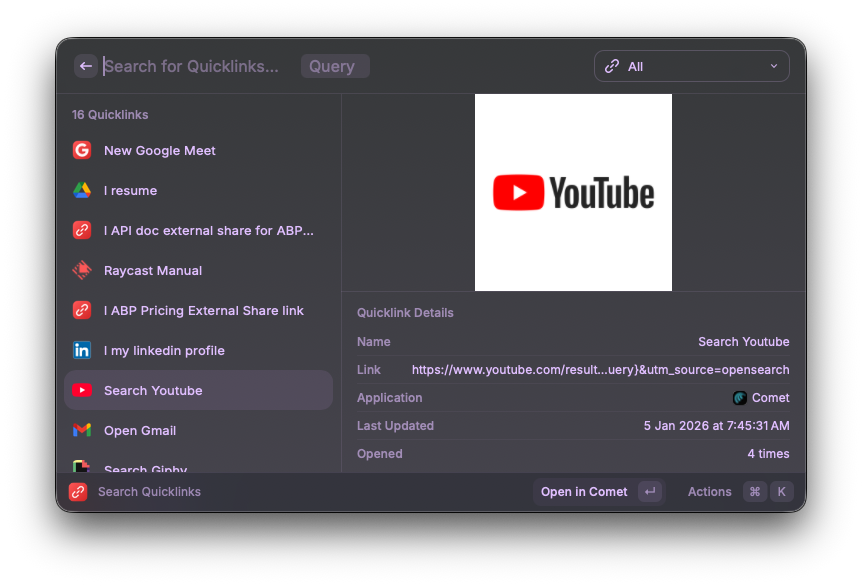
 !ph, and have it automatically replace it with your phone number. - Have your most used links handy with “Quicklinks”. These can open browser links and app deeplinks (like an Obsidian file).
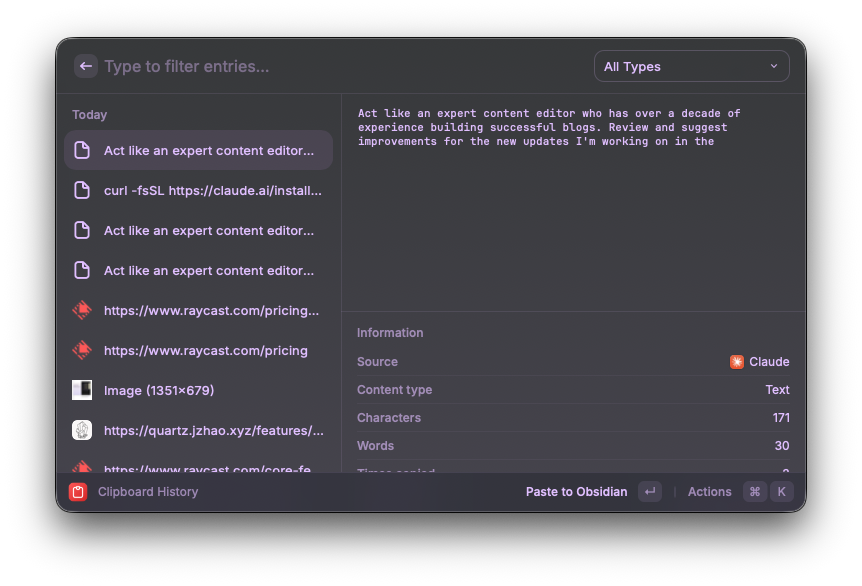
- Access clipboard history and paste sequentially.
- Arrange windows with shortcuts
.gif) or predefine your workspace setup and trigger it with a shortcut.
or predefine your workspace setup and trigger it with a shortcut. .gif)
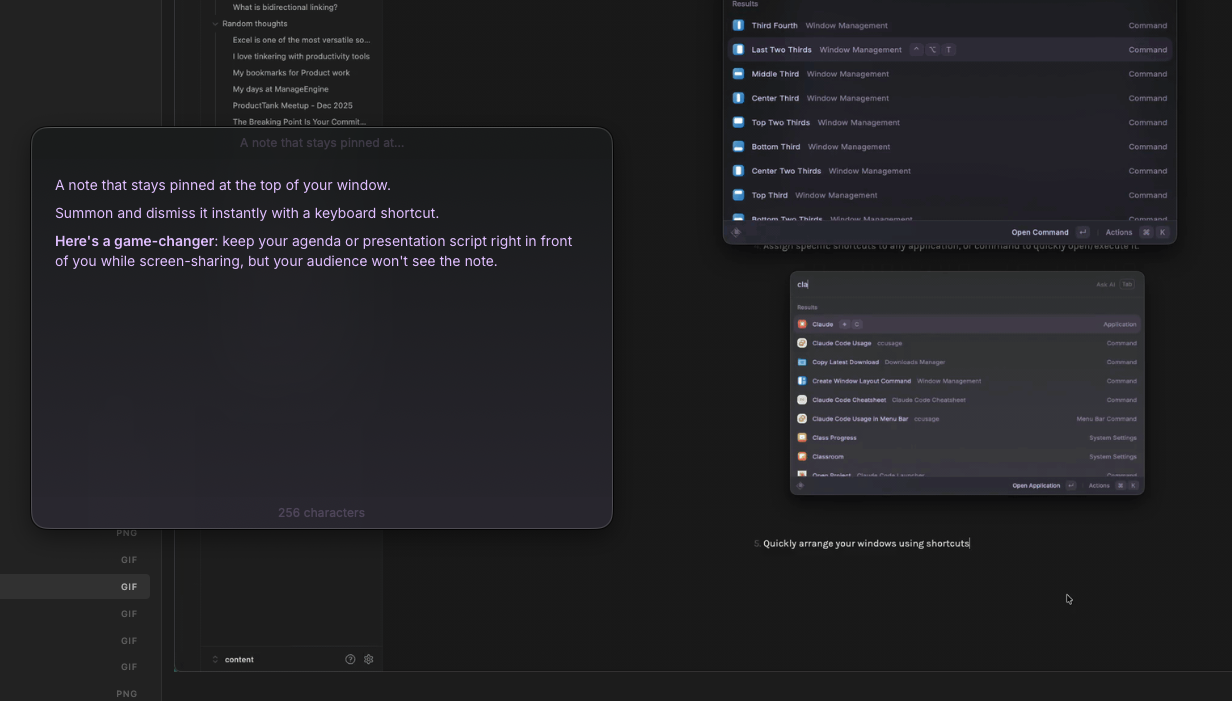
- A scratch pad for quick notes. Stays pinned at the top of your window. Summon and dismiss it instantly with a keyboard shortcut. The game-changer: keep your agenda or script visible while screen-sharing—your audience won’t see it.
 Note: The free plan is generous but limits note count. Upgrade for AI features. Check it out with my affiliated link! (Using this link to purchase will give a small bonus to the both of us.)
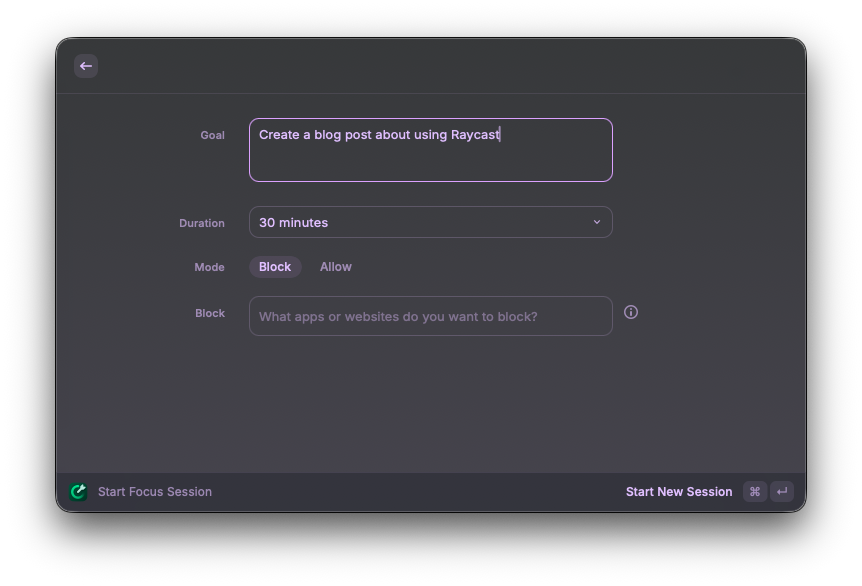
 - Work in Pomodoro using Focus mode. Block distracting apps and websites to stay focused.

- Install and use extensions from
Store.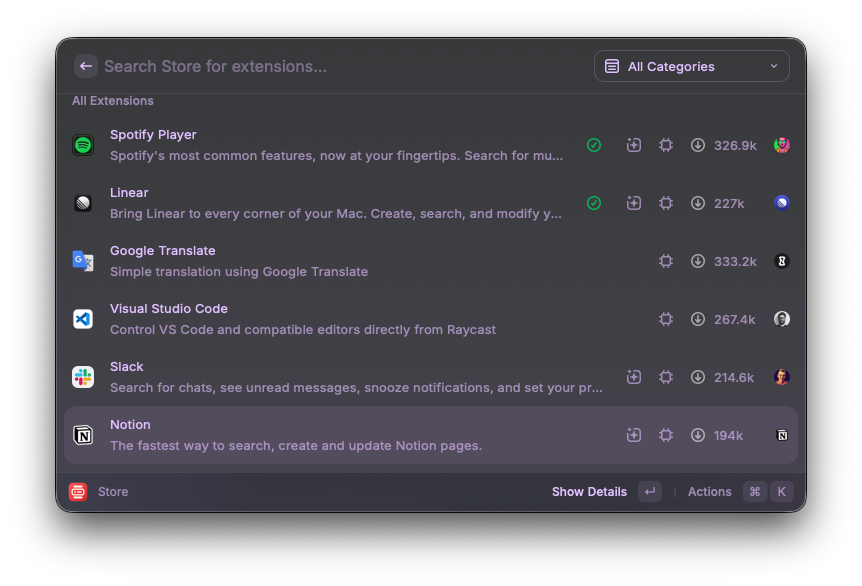 Here are some of my favourites:
- Spotify - I share songs with friends constantly—now it’s one command instead of multiple clicks
- Raindrop.io - my long term bookmarking
- Word search - find the word you are looking for
- Color picker
- Word count
- Do you run a command very often? Create a script to automate it.
.gif)
- Up for getting your hands dirty? Build an extension.
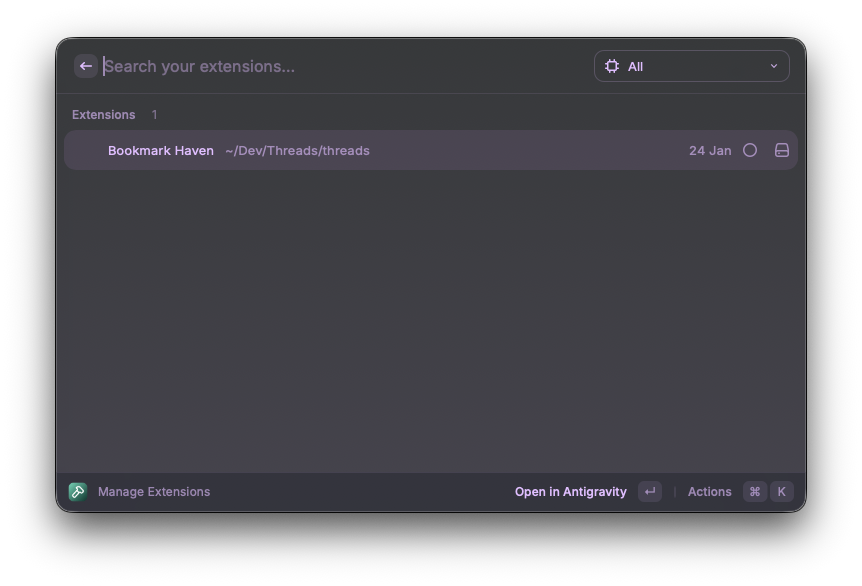
- Use Raycast AI for,
- Quick fact checks/AI inference using @Ask AI
- Check spelling and grammar as you work, without slowing down.
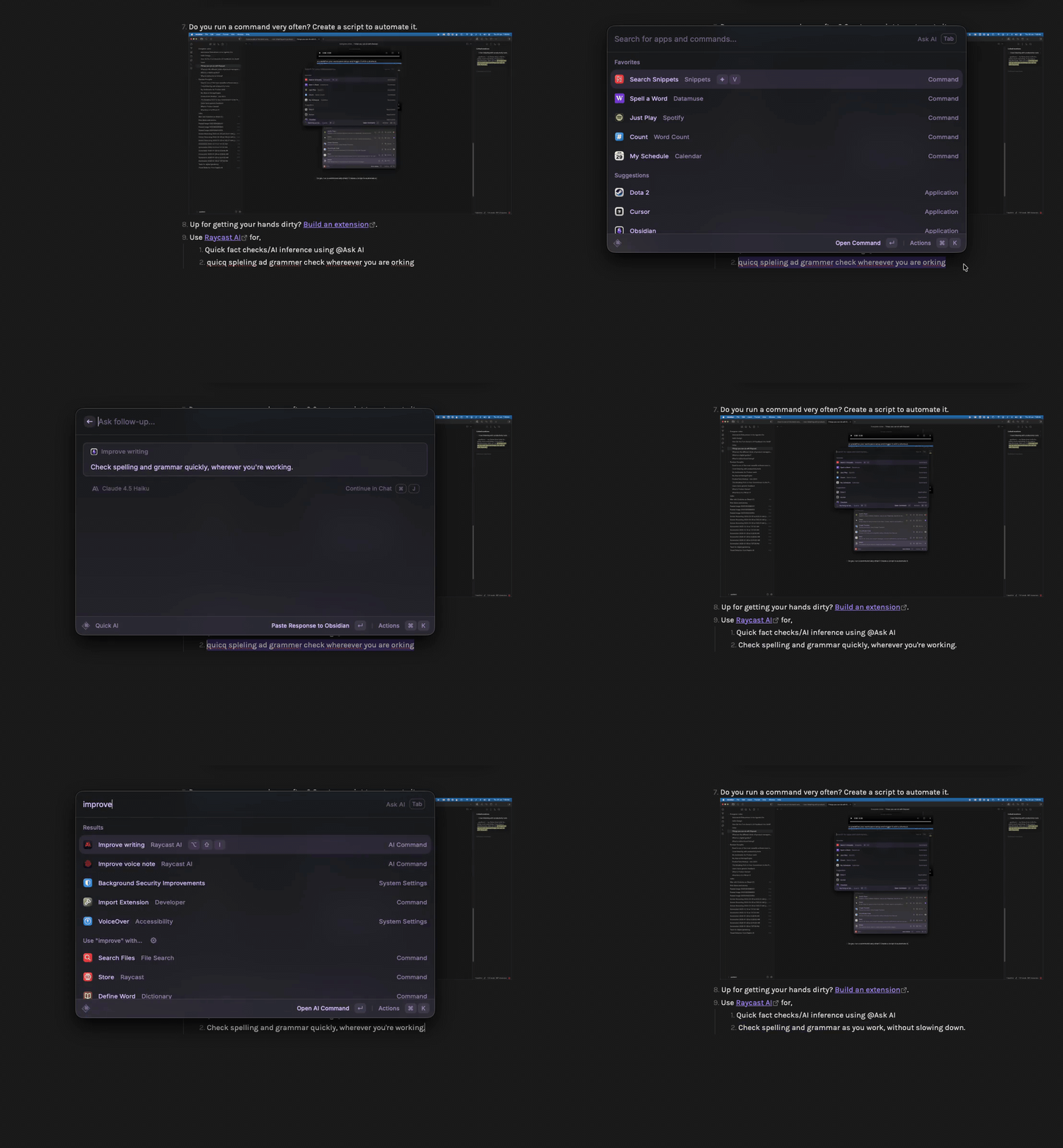 This is my favourite and most used! You can create your own commands with your own prompts. If you are looking for a starting point, look here, and here.
 - Access AI Chat with presets (like custom GPTs) from anywhere.